
Prepare Your Cross-Stitch Pattern for Printing
Review your Crosspic design, choose PDF chart settings, check page overlap and symbols, and keep an editable backup before printing.
A finished design and a comfortable stitching chart serve different purposes. The design shows the result you want; the chart needs to make each stitch easy to find. Before printing a Crosspic pattern, take a few minutes to check both.
Open your project from My patterns and review the design before moving to PDF export. Small corrections are easier to make while the pattern is still open in the editor.
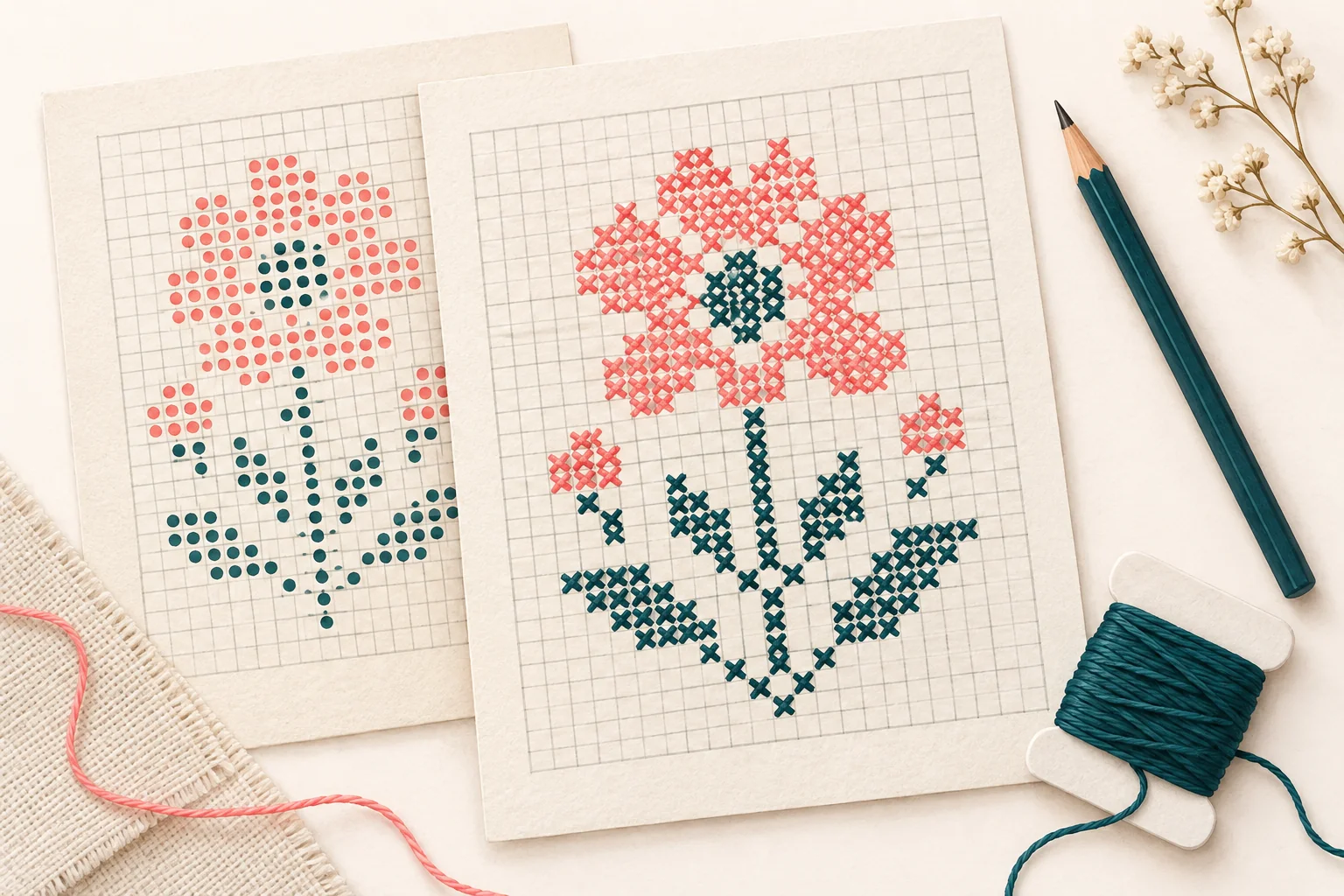
Illustrative artwork, not a downloadable stitch chart or a Crosspic PDF preview.
Review the stitches and project details
Look for stray stitches, unfinished edges, and colors you no longer need. Check backstitch lines if your design uses them. Switch views to inspect both the overall appearance and the symbols used in the chart.
Review the project title, fabric count, strand count, and finished dimensions. These details help you connect the printed chart with the project you intend to stitch. If the palette needs attention, use the color cleanup guide before exporting.
Choose a chart you can read comfortably
Crosspic can export PDF charts on A4 or US Letter paper. Select the paper size you plan to use, then choose a color, symbol, or combined chart.
- Color charts help you see the pattern's color areas.
- Symbol charts give each color a mark you can follow without depending on color alone.
- Combined charts show both color and symbols.
For a pattern with similar shades, pay particular attention to how clearly the symbols distinguish them. Check the chart at the size you expect to print, rather than judging it only while zoomed in on screen.
Check page boundaries and supporting information
Choose the number of stitches per page to balance readability and page count. Fitting more stitches on each sheet can reduce the number of pages, but makes each chart cell smaller.
For a multi-page chart, inspect the page overlap and grid numbering. Overlapping rows or columns provide shared reference points between pages; they repeat part of the chart rather than adding stitches to the design.
Include the supporting information you will use, such as a legend, center arrows, cover, or pattern preview. In the generated PDF preview, check the first page, a page boundary, and the legend before downloading.
Print a test page and keep your project file
Try one chart page before printing the full document. Confirm that you can distinguish the symbols and follow the grid under the lighting where you plan to stitch.
Keep the PDF for reading and printing, and export a separate .crosspic backup for future edits. The editable project preserves the stitches and palette so you can revise the design later.
If this is your first design, the blank-canvas guide walks through a small project from its first stitches to saving a backup.